A collaborative screenwriting app has to do more than put two writers on the same page. Co-writers need to develop the story and characters together. One partner might be drafting a scene while the other rethinks the outline. A guest writer might need access for a single dialogue pass of feedback. Later, one partner might want to try a different ending in private without touching the version everyone else is working on.
Arc Studio, WriterDuet, and Final Draft Cloud all let invited writers edit a shared screenplay in the browser. The best fit depends on what your team needs to do around the draft.
This review compares those workflows alongside the everyday writing experience. The main criteria are access and permissions, awareness of other writers’ activity, syncing speed, feedback management, collaborative outlining, and private drafting. A feature is most useful when it supports the way a team actually works; a writing partnership developing a screenplay together has different needs from a producer reviewing an occasional draft.
For readers choosing between the three:
- Arc Studio is our top pick for writing partners and teams who want to develop, write, and revise a screenplay together. Co-writers can edit the same script in real time, discuss story decisions on the Plot Board, and assign beats to divide the writing. When someone wants to try a rewrite privately, they can create a personal Branch Copy, share it when ready, and review which changes to bring into the main draft. That makes it easy to move between writing together and working independently as the script develops.
- WriterDuet is best for teams that prioritize workspace customization and communication within the app. Its configurable layouts, comment attachments, and integrated video chat provide useful flexibility. More of the experience depends on choosing a layout and learning where its controls are located.
- Final Draft Cloud is best when a team needs to work within Final Draft. It provides browser editing and threaded feedback alongside an established Final Draft workflow. Its browser tools cover less of the planning and revision process than Arc Studio or WriterDuet, so the desktop application remains relevant to the decision.
This comparison covers the browser applications, with interface examples from Chrome and product documentation checked on November 16, 2026. It evaluates documented workflows and interface behavior rather than providing a repeated performance benchmark. Desktop features are identified separately, and feature access depends on the subscription and permissions assigned to each participant. This comparison is published by Arc Studio and is not affiliated with WriterDuet or Final Draft.
Inviting collaborators and choosing their access
Access controls affect both convenience and the scope of a collaboration. A regular co-writer may need access to a whole project. A guest doing a dialogue pass may need one screenplay. A reader giving notes should be able to comment without changing the draft.
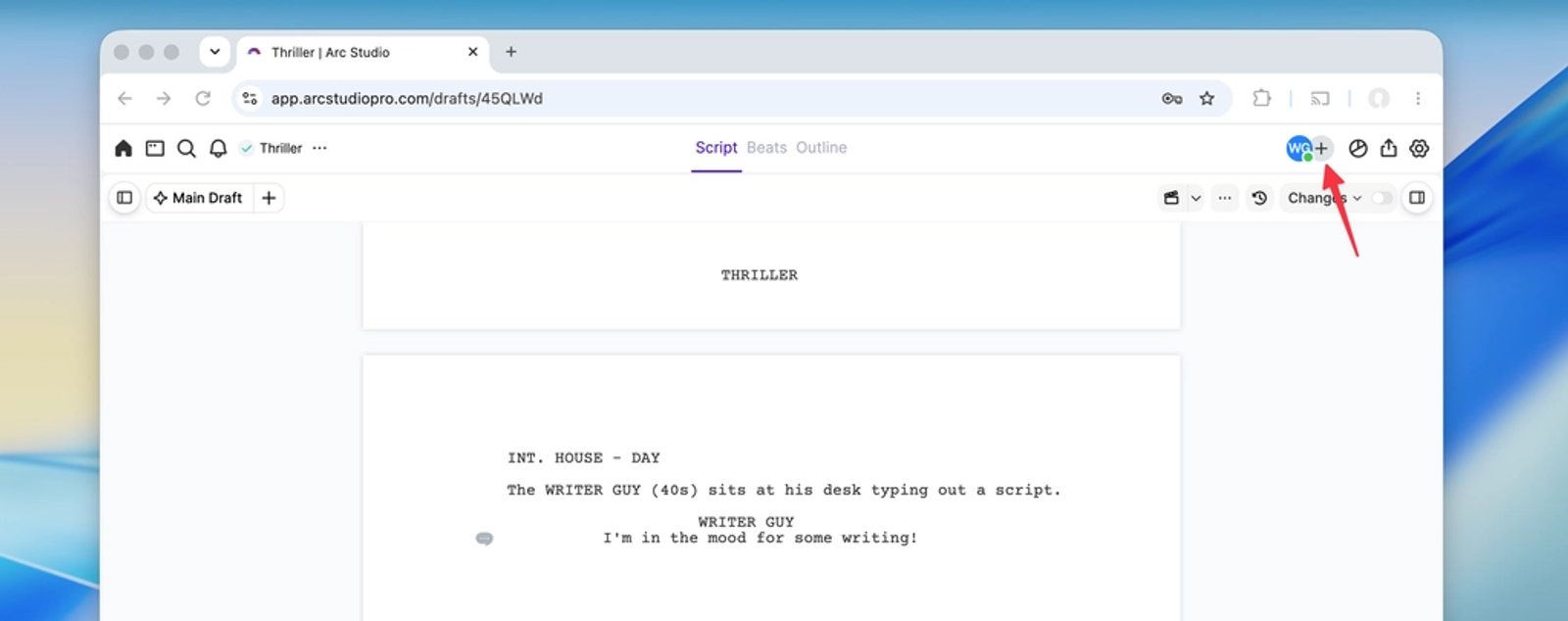
Arc Studio supports invitations by email and sharing link, with editing, administrative, and read-only access. Its invitation control sits beside the collaborator avatars in the editor. Email invitations can also grant guest access, allowing someone to edit or comment without creating an Arc Studio account. This is a useful option for short engagements where account setup would otherwise be part of the handoff, and allows for flexibility when collaborators do not want to create an account. Arc Studio’s collaboration guide describes these options.
WriterDuet offers email invitations and sharing links with Admin, Editor, and Read-only permissions. Invitations can include a message, and links can be single-use or reusable. Sharing is organized around the project: collaborators gain access to its shared documents, while private documents remain hidden. This suits teams that want drafts, outlines, and related material grouped in a shared working space. WriterDuet’s sharing guide explains the permissions and link settings.
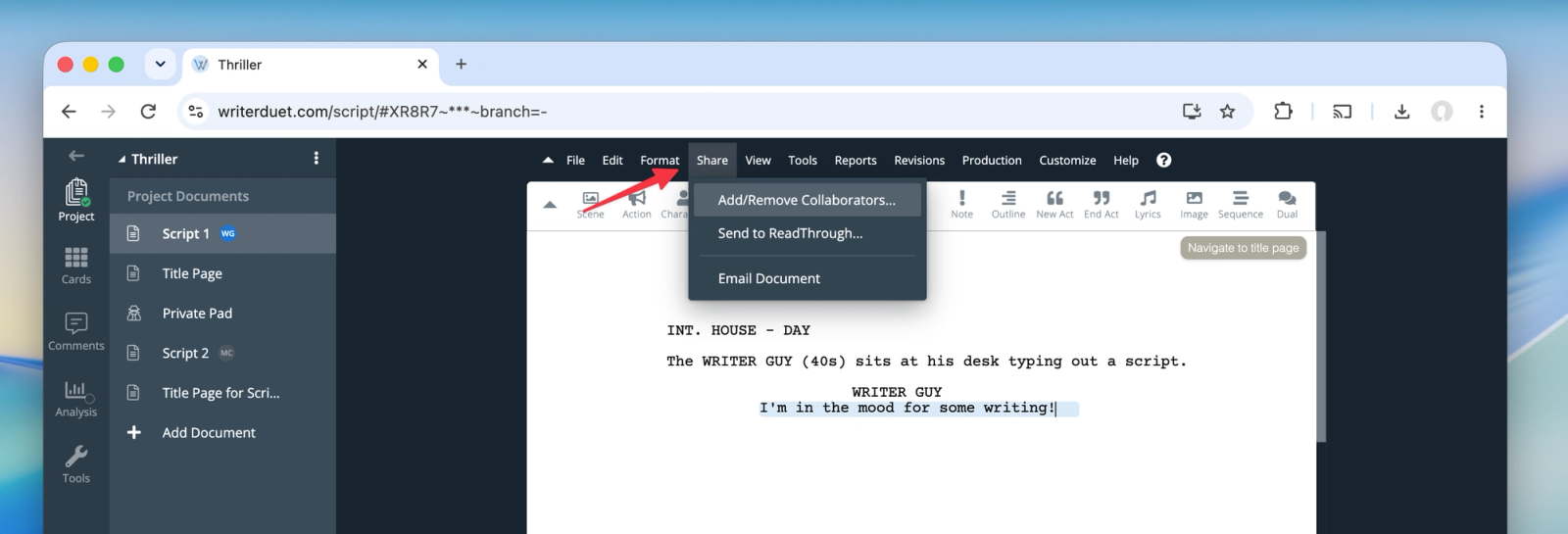
Arc Studio supports project sharing as well as individual script invitations. The choice matters when a contributor needs access to only part of a larger body of work. WriterDuet also offers ReadThrough, a separate service for sharing scripts with readers who do not have WriterDuet accounts. That supports external feedback; editing within WriterDuet requires an account.
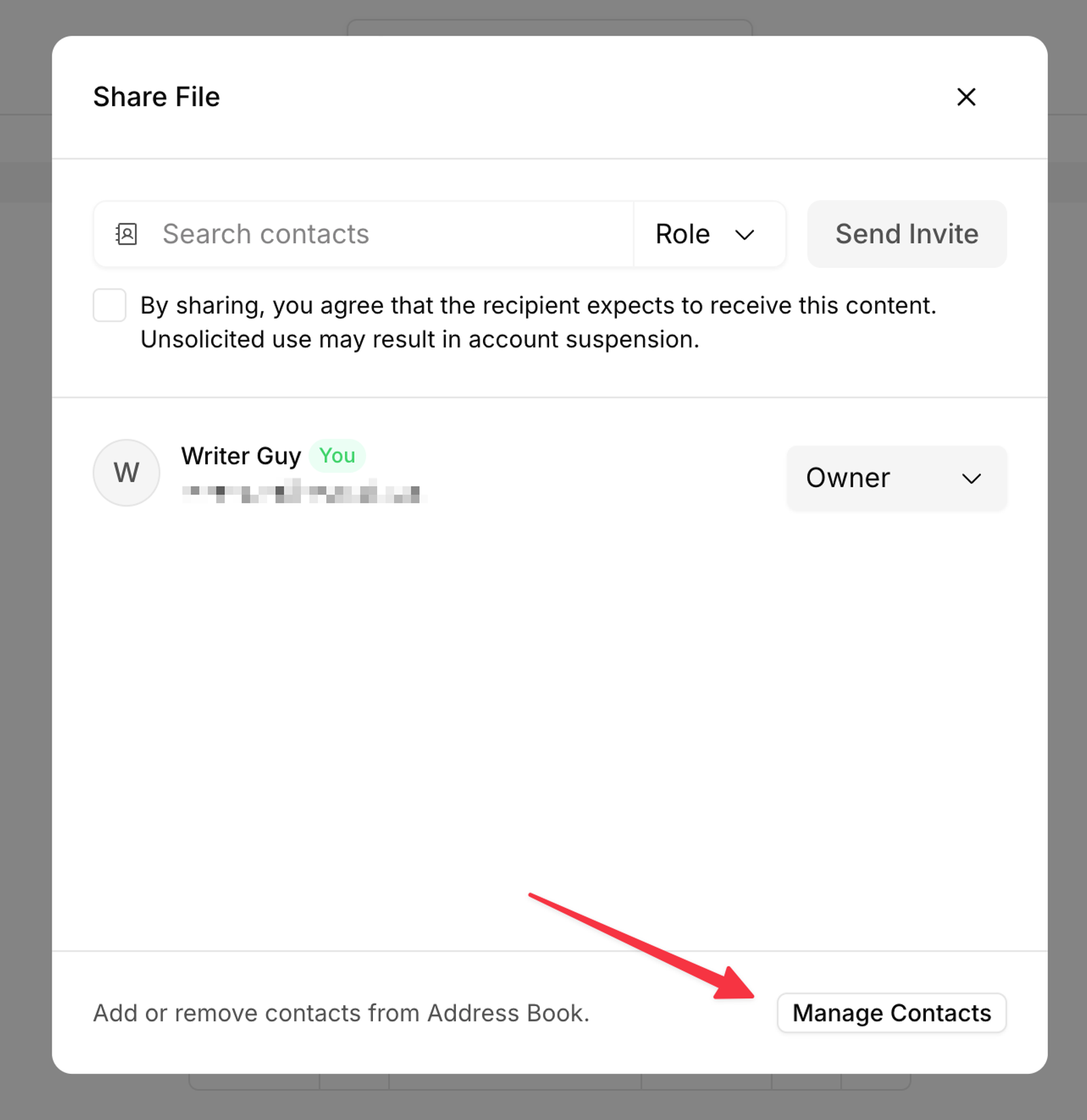
Final Draft Cloud uses contacts and email invitations. If a collaborator has not first been added to your Contacts, they cannot be added directly to the script. After a collaborator is added to the address book, the owner can choose Reviewer or Editor access and send an invitation. Whole projects can also be shared. Reviewers can read and leave ScriptNotes; Editors can change the screenplay and download or print it. The contact step adds setup for a new collaborator, although it is less significant for a team that regularly works with the same people. Final Draft’s Vault guide details the workflow.
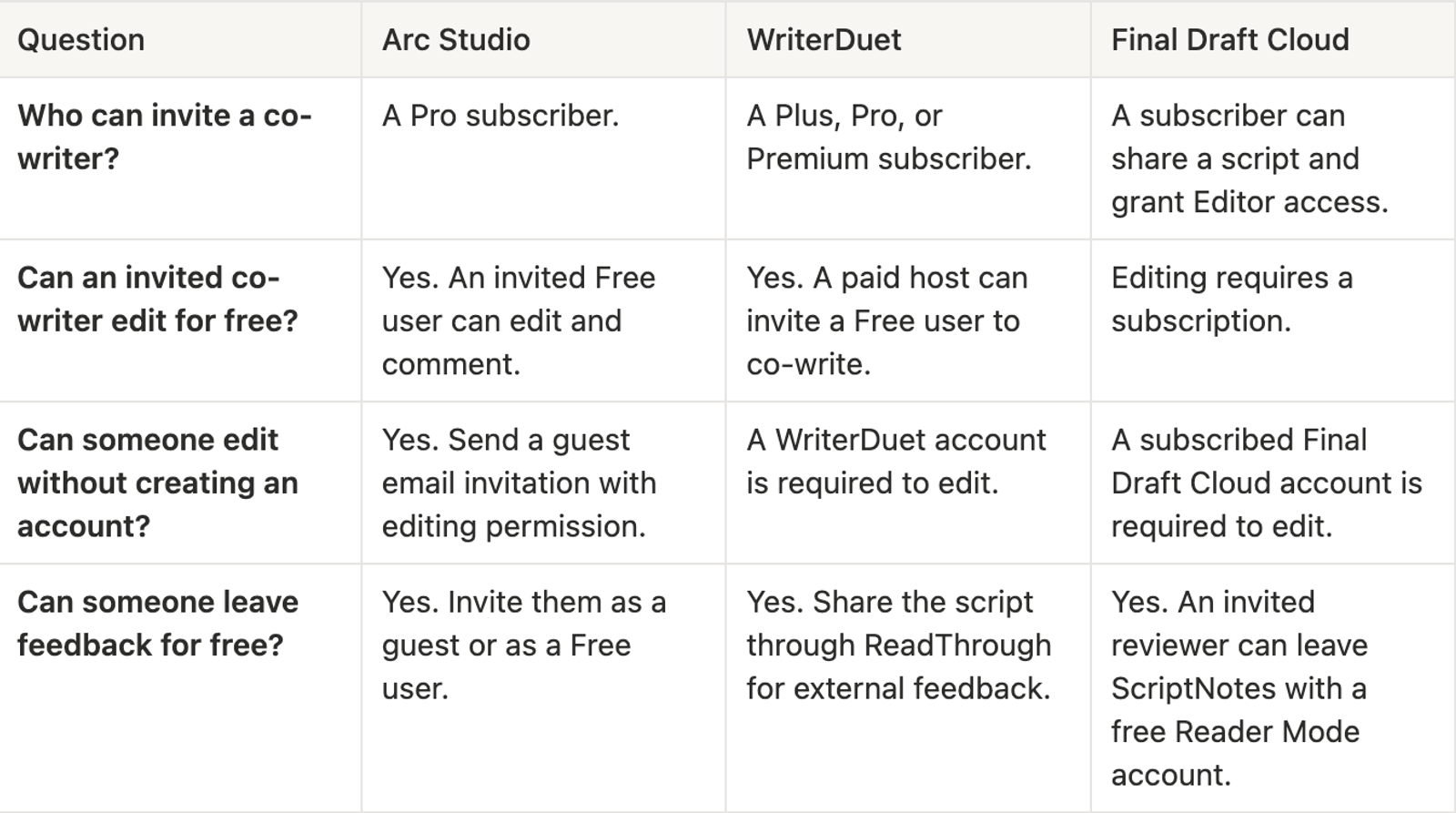
Subscription requirements deserve separate attention. Arc Studio requires a Pro subscription to invite collaborators, but invited Free users can participate in basic writing and editing. They need their own upgrade for Pro features such as outlining. WriterDuet’s collaboration plans start at Plus, and Free users can join shared work; Pro adds capabilities including colored revisions. Final Draft Cloud lets non-subscribers review and add ScriptNotes, while editing requires a subscription. These distinctions are documented in Arc Studio’s plans, WriterDuet’s plans, and Final Draft’s non-subscriber permissions.
For occasional guest editing, Arc Studio has the most direct option of the three. WriterDuet provides useful control over invitation links and a separate reading workflow. Final Draft Cloud’s permissions are adequate for a recurring group of editors and reviewers, with a subscription required for each person who needs to edit.
The writing interface and awareness of other writers
All three applications support the familiar screenwriting pattern of using Return and Tab to move between elements. The more consequential differences concern how much information stays visible, where collaboration controls live, and how easily writers can find one another’s work.
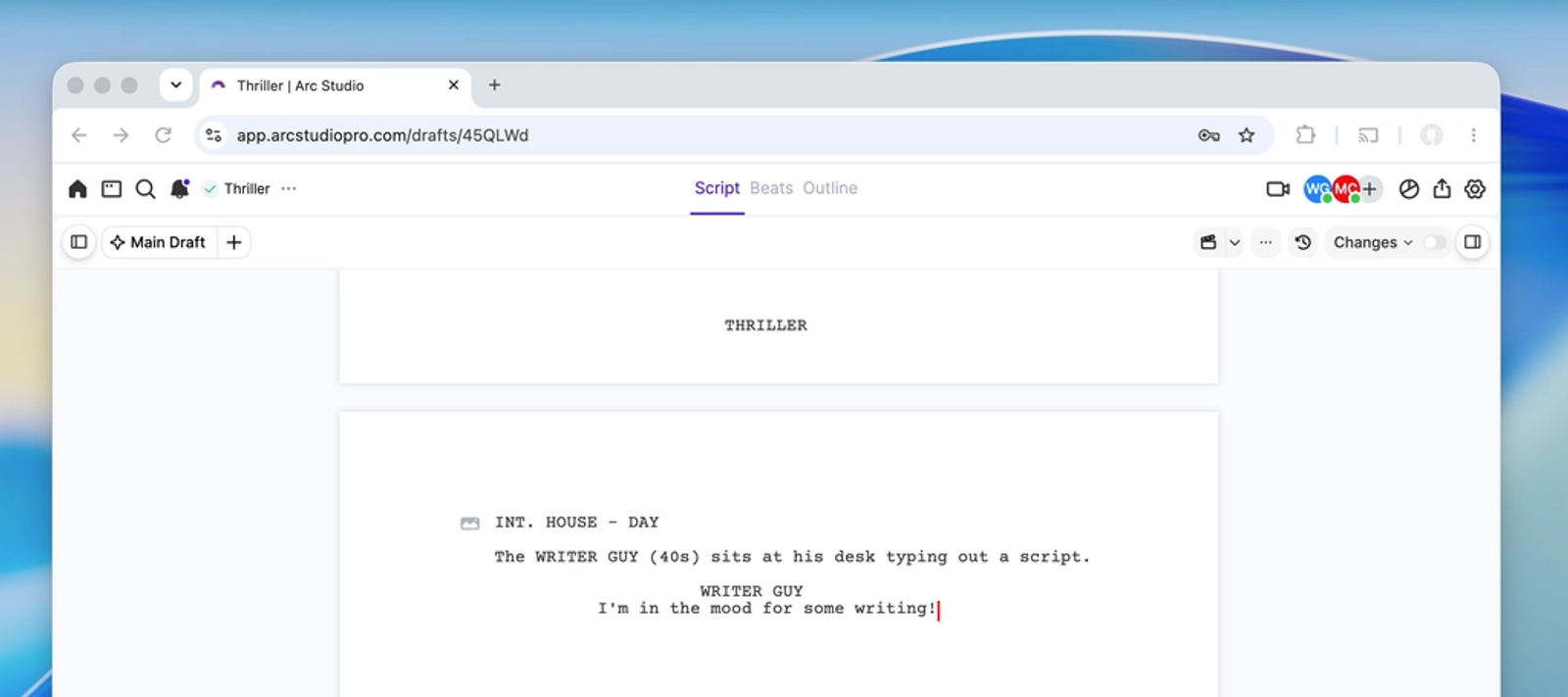
Arc Studio uses a modern, minimalist editor. Collaborator avatars sit above the page, with green light indicators for people currently in the script. Script, Beats, and Outline are available from the main navigation, and Focus Mode provides a more reduced writing view. This arrangement suits writers who want most of their attention on the page while retaining a small number of collaboration cues.
WriterDuet exposes more controls in the layout shown below. A conventional menu bar and a row of screenplay elements make commands visible without first opening a menu. Collaboration status and following controls are available through the Chat section located in the Comments widget. The result provides more information at once, but also requires the writer to learn several areas of the workspace.
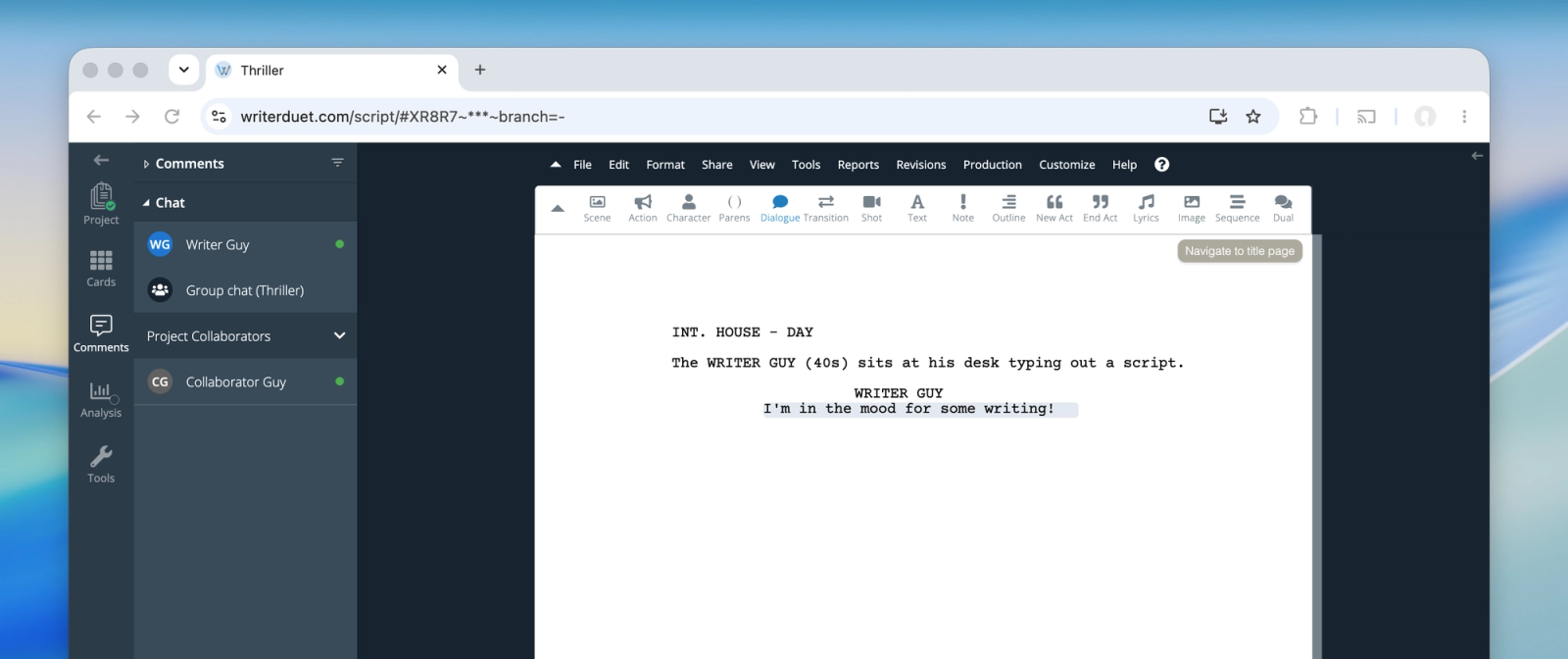
That tradeoff is partly a matter of preference. Visible menus can help users discover commands, and configurable widgets let experienced writers arrange tools around their habits. A more reduced interface makes fewer demands on visual attention but can require opening a control to find a less frequent command. WriterDuet supports multiple layouts rather than prescribing a single arrangement, as its workspace and document guide explains.
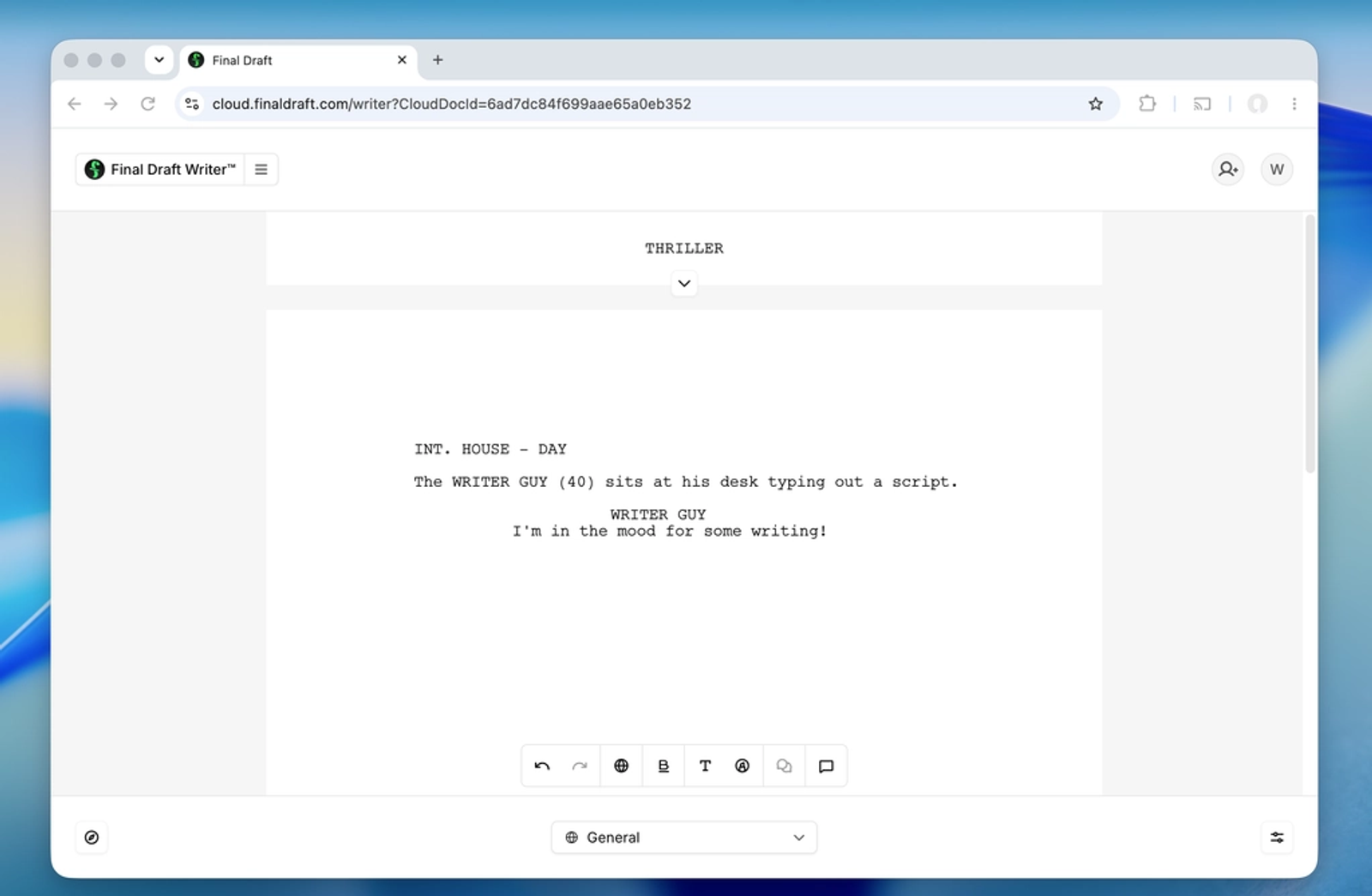
Final Draft Cloud also presents a relatively quiet page, with a floating formatting toolbar. Its browser editor offers fewer ways to keep track of a collaborator’s activity: it lacks the live collaborator indicators, jump-to-collaborator control, and scroll mirroring covered here. That limitation matters more during a shared writing session than when writers work at different times.
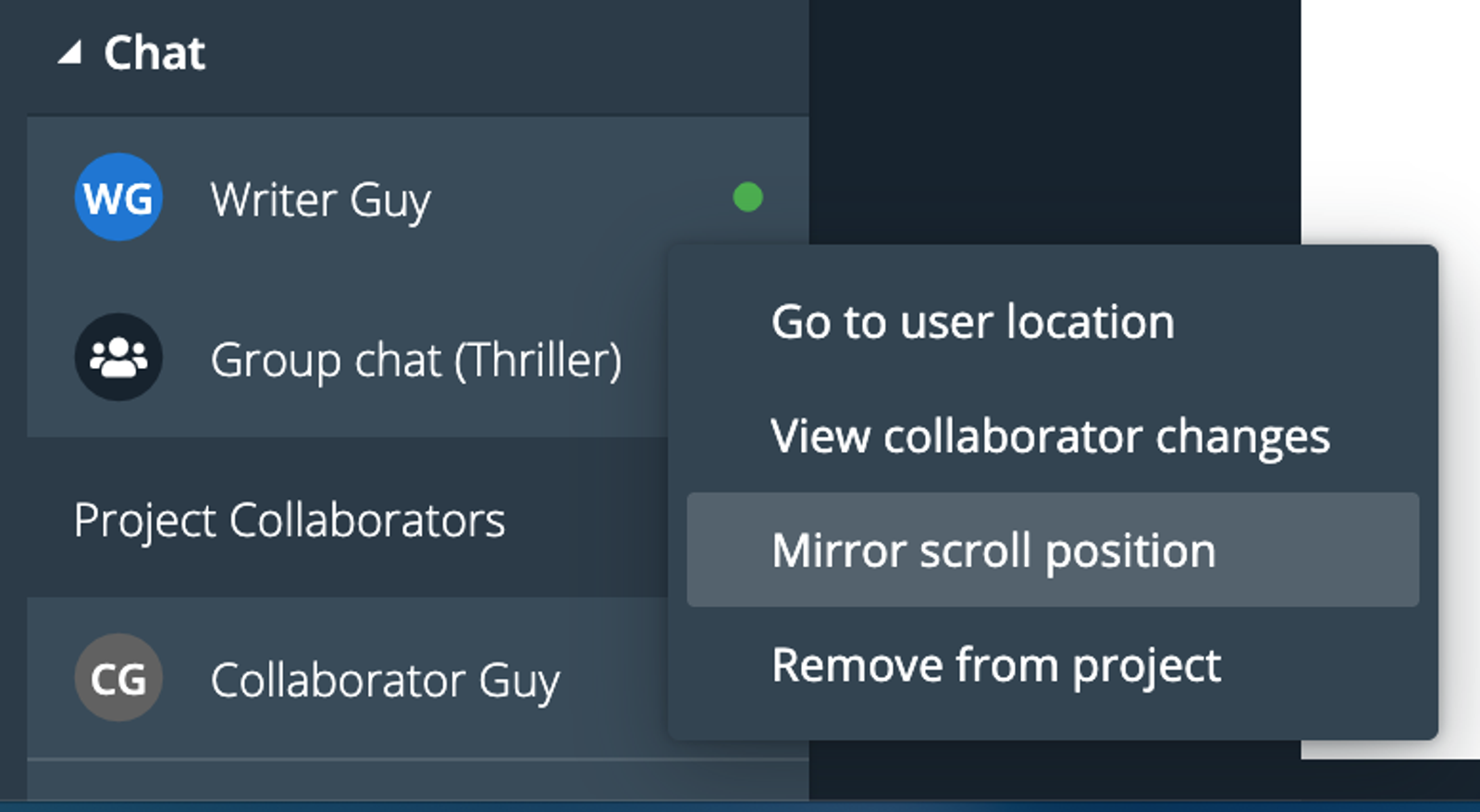
Consider a remote session in which one writer asks another to review a newly changed passage. Arc Studio lets the second writer quickly jump to a collaborator’s position by clicking their avatar. WriterDuet supports jumping to a collaborator and mirroring their scroll position by opening the Comments widget, scrolling to the Chat section and clicking the three-dot icon for the collaborator in question.
In Final Draft Cloud, the writers need to identify the passage themselves, for example by referring to its scene heading or a line of dialogue.
Arc Studio is the stronger choice for a compact default interface with collaborator information close to the page. WriterDuet offers more control over the workspace and useful following tools. Final Draft Cloud’s simpler presentation is suitable for straightforward drafting, but provides less assistance with coordinating a live session.
Following edits during a shared session
Simultaneous editing and a useful live writing experience are related, but they are not identical. Writers also need to understand whether their partner is still typing, what has changed, and who made a particular addition.
Synchronization speed matters most when two people are revising the same passage while talking. Frequent updates allow the reader to follow a sentence as it develops; updates that arrive in larger blocks can introduce pauses while both writers establish what is on screen. For teams dividing scenes and reviewing one another’s work later, that distinction is usually less important than clear revision tracking.
For a partnership or team that writes together in real time on separate devices, trying a shared editing session is a useful part of evaluating the software. Two such examples of an evaluation are shown below. The first compares the synchronization speeds of Arc Studio and WriterDuet, while the second compares the synchronization speeds of Arc Studio and Final Draft Cloud. The comparisons were conducted in the same browser (Chrome) on the same device with the same internet connection within seconds of each other. A definitive speed ranking would require repeated tests across representative scripts and connections.
Arc Studio vs WriterDuet: Synchronization speed
WriterDuet allows users to customize the speed at which script changes become visible to a collaborator. In this recording, the update speed was set to its highest setting. WriterDuet displayed the completed line shortly after the writer finished typing, while Arc Studio displayed the line almost instantaneously as it was typed.
Arc Studio vs Final Draft Cloud: Synchronization speed
In this recording, both writers had the same Final Draft Cloud script open in separate accounts. Part of the line appeared on the second account while the first writer was still typing. The complete line appeared roughly eight seconds after typing stopped. In the Arc Studio clip, the line appeared almost instantaneously as it was typed.
Displaying collaborator changes
The apps’ approaches to displaying changes are easier to distinguish. Arc Studio can show tracked additions in the color assigned to each writer, matching the collaborator avatars. This makes attribution visible in the text: a reader can distinguish one writer’s contributions from another’s during a revision pass.
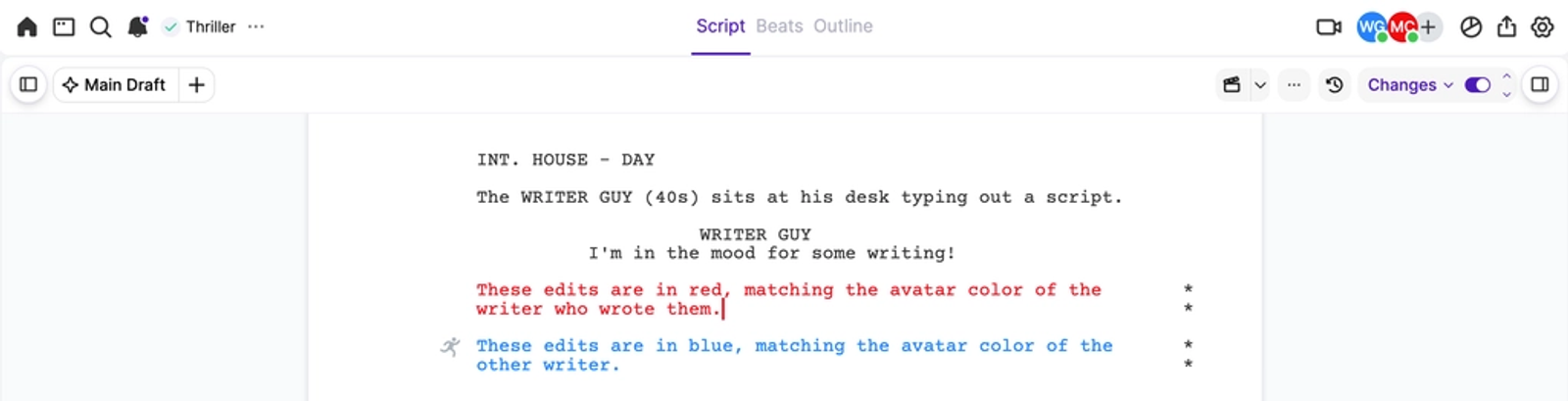
WriterDuet temporarily highlights incoming edits in red, fading the highlighting after the changes have been seen. This draws attention to recent activity without requiring a formal revision pass. It also provides revision tracking, with colored revisions available on Pro. Temporary highlighting and revision tracking serve different purposes: the first shows what just arrived, while the second supports a deliberate review of changes.
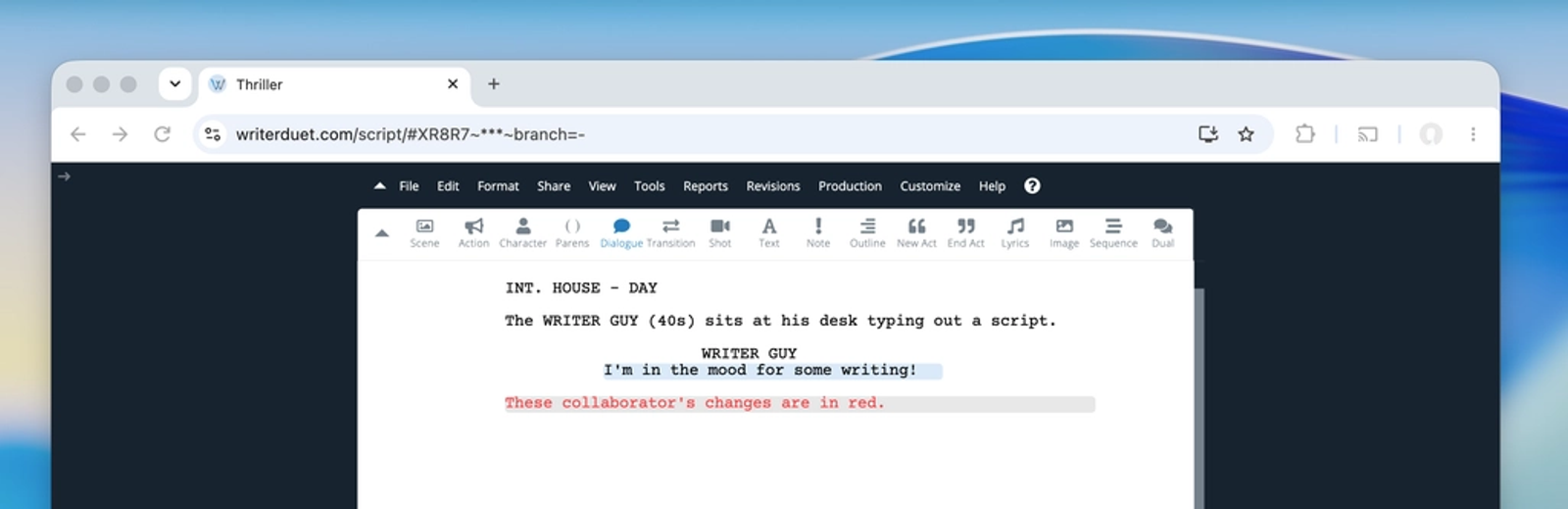
Final Draft Cloud supports manually applying text colors and highlights, but does not provide equivalent automatic coloring of changes by writer. Manual formatting can draw attention to a passage; it does not establish who edited it. Final Draft documents these formatting controls as part of the browser editor.
For teams that regularly review contributions by author, Arc Studio and WriterDuet offer more support within the browser. WriterDuet’s temporary highlighting is also useful when the immediate concern is noticing new text as it arrives.
Managing feedback and discussing revisions
A few comments can be handled by reading through the script. A substantial notes round requires more organization: separating unresolved issues from completed work, finding one reviewer’s comments, or collecting every note about a particular character.
Arc Studio supports comments on entire paragraphs or selected text, replies, mentions, and resolved states. Its custom tags allow writers to organize notes by topic and filter them accordingly. A team could use “pacing,” “motivation,” and “continuity” to conduct separate revision passes without searching the entire screenplay for each concern. Mentions notify the relevant collaborator when a question needs their attention, and comments can be exported via PDF. Arc Studio’s collaboration documentation describes the commenting tools.
WriterDuet also supports mentions, replies, resolved comments, and filtering. Comments can be organized by author, status, and color. A team can use colors as categories, then filter for the relevant group. Arc Studio’s named tags make the category explicit; WriterDuet’s color approach works well when the team has an agreed convention. Both provide ways to turn a collection of notes into a more focused revision pass.
WriterDuet adds file attachments to comments. This is useful when feedback depends on a visual reference, a recording, or another supporting file. For example, attaching a recorded reading can make a note about the delivery of a line more specific. Its comments guide covers attachments, filtering, and including comments in PDF exports.
Arc Studio and WriterDuet both offer text chat alongside the script. WriterDuet supports private and group text chats, plus built-in video calls with one collaborator at a time. Arc Studio offers a Zoom integration. For a writing duo that wants to start a video call from the editor, WriterDuet has the built-in option. Teams already using Zoom may find Arc Studio’s integration fits their existing routine. See WriterDuet’s feature list and Arc Studio’s collaboration guide.
Final Draft Cloud uses ScriptNotes for feedback. Notes support labels and threaded replies, allowing reviewers to discuss a passage without changing the screenplay. This covers a common approval workflow in which a writer retains editing control and a producer or director contributes notes.
ScriptNotes offer fewer tools for managing a large revision round. They lack a resolve workflow, notification mentions, and a sortable overview of notes. A label containing a collaborator’s name identifies the intended reader, but does not function as a notification mention. ScriptNotes also do not appear in exported or printed PDFs, as Final Draft confirms in its ScriptNotes guide.
Arc Studio is the best fit here for teams organizing feedback by named topics. WriterDuet is particularly useful when comments need supporting files or discussion benefits from integrated video. Final Draft Cloud handles threaded feedback, but teams with extensive notes may need an additional way to track which issues have been addressed.
Developing an outline together
Outlining introduces a different form of collaboration. Teams need to come up with the story, create the structure, record what that part of the story should accomplish, discuss alternatives, and sometimes assign writing responsibility before screenplay pages exist.
Arc Studio’s Plot Board uses beat cards with titles and synopses. Each beat is like a digital index card that represents one part of the story, following the approached used in TV writers’ rooms like Breaking Bad. Collaborators in Arc Studio can comment directly on a beat, reply to the discussion, and assign the beat to a writer. This connects the story plan with the decisions and responsibilities that follow from it.
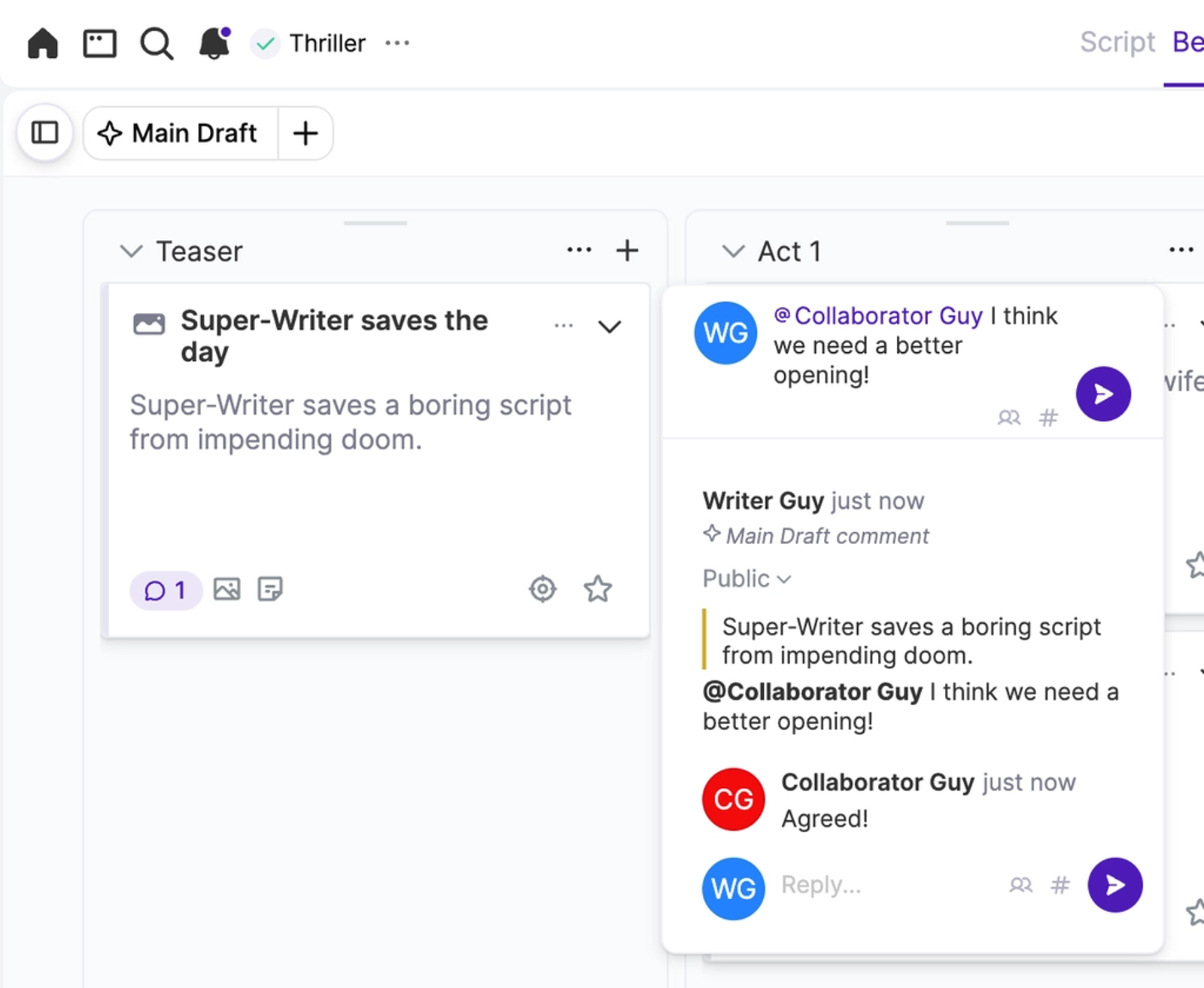
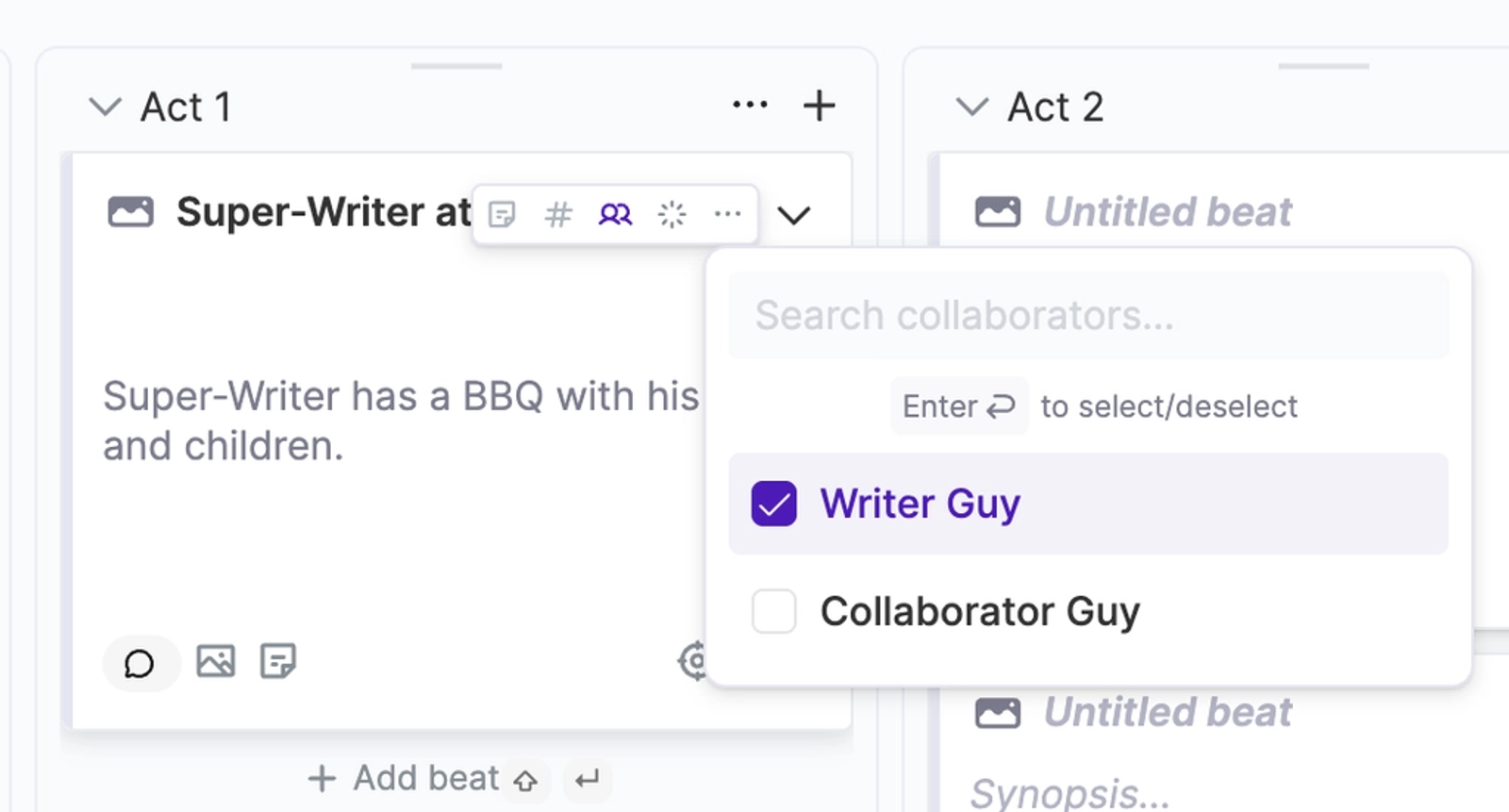
For example, a team moving a reveal later in the story can discuss the change on its beat and assign the resulting rewrite there. Keeping the discussion attached to the planning unit is useful when an outline changes repeatedly or work is divided among several writers.
WriterDuet provides Cards View, Mind Map, and Outline Mode. Cards can show scene headings and custom outline lines, while sequences group scenes into larger units that can be rearranged together. These tools support planning beyond the text already written in the screenplay. WriterDuet’s Outline Mode guide explains how outline lines and sequences work across views.
The main distinction is the relationship between the outline and the collaboration tools. Arc Studio puts beat-level discussion and assignment on the planning surface. WriterDuet organizes the outline through document elements and offers several ways to view them. Arc Studio is better suited to teams that want the board to carry both story decisions and writing assignments; WriterDuet suits writers who prefer developing and rearranging an outline through the document’s structure.
Final Draft Cloud does not offer an equivalent integrated outlining workspace. Final Draft’s desktop application includes the Beat Board and Outline Editor, but these should be evaluated as desktop capabilities. The Final Draft desktop product page identifies those tools.
A team already outlining in desktop Final Draft may be comfortable continuing that process there and using Cloud for writing and review. For teams seeking a browser workspace that also handles collaborative story development, Arc Studio and WriterDuet provide more of the required functionality.
Writing privately and bringing changes back
Collaboration does not always require immediate visibility. A writer may need privacy to explore an alternate ending, work through an unfinished scene, or prepare a proposed change before others review it. The important questions are whether the experiment affects the shared draft and how the team incorporates it afterward.
Arc Studio’s Branch Copies provide a separate version that can remain private while the main draft stays available to collaborators. When the work is ready, the branch can be shared.
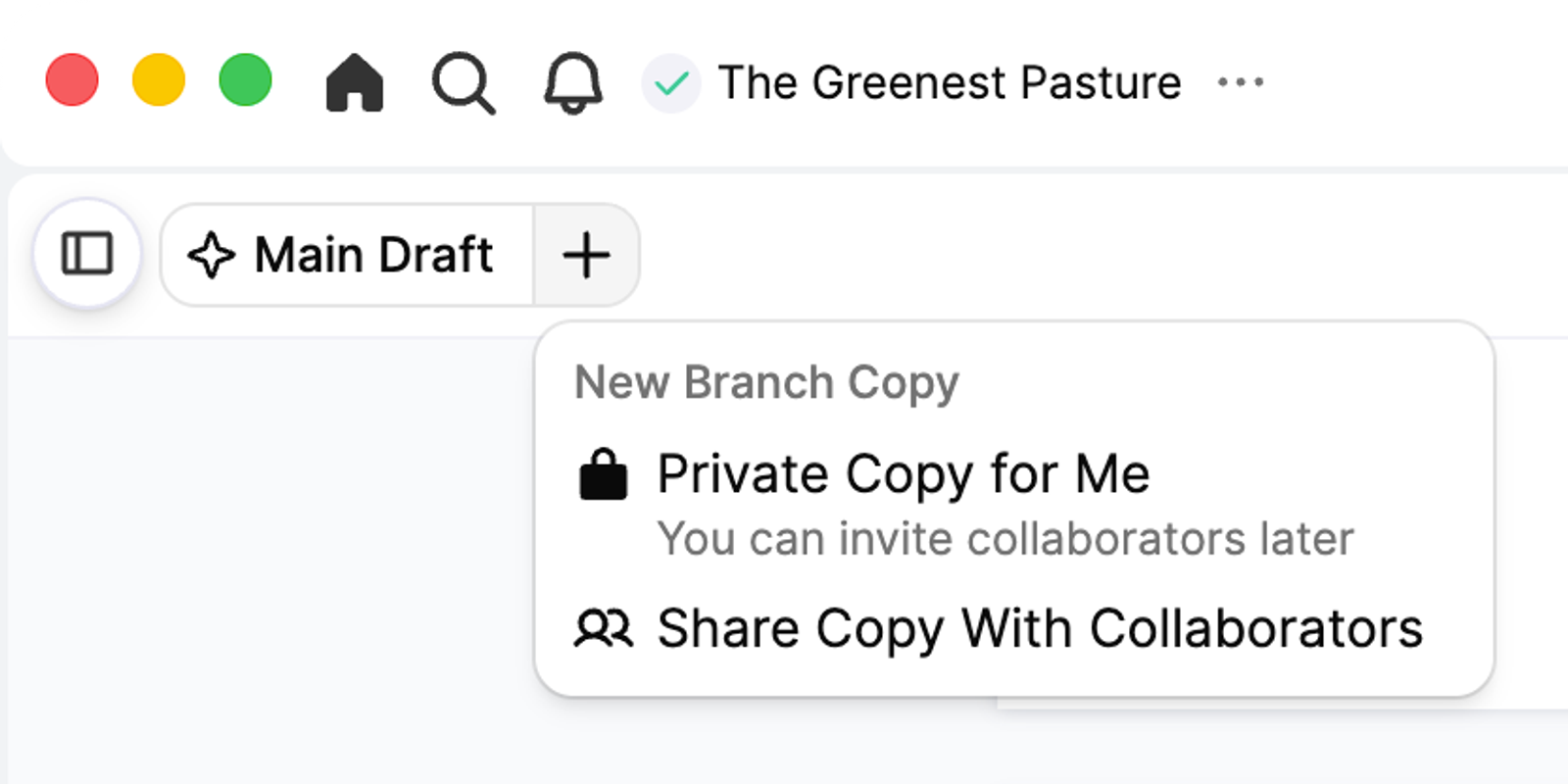
The merge process then lets writers review changes that were made in the private copy and choose which to incorporate in the Main Draft. Branches can cover an individual beat as well as a complete screenplay. Arc’s Branch & Merge guide documents the process. A selective merge is useful when an experiment is only partly successful. An alternative ending might contain a stronger exchange of dialogue even if the team keeps the existing ending. Reviewing individual changes provides a way to retain that contribution without accepting the entire alternate draft.
WriterDuet offers private documents and a Private Pad for material that collaborators should not yet see. A document must be marked private when it is created. Once made public within the project, it cannot be made private again, according to WriterDuet’s private-document guide. Its Line Alternates feature lets you keep several versions of a line in the script while you decide which one to use.
This works for personal notes, separate drafts, and material that will be shared as a document. Arc Studio’s distinction is the explicit connection between private work and selective incorporation into the main screenplay. Its branch-and-merge process gives teams a defined review step when bringing an experiment back into shared work.
Final Draft Cloud has no equivalent private-branch-and-merge workflow. Teams can control access to scripts and keep separate material, but must manage the review and incorporation of those changes themselves.
For teams that frequently divide writing work or compare alternative versions of a scene, Arc Studio has the strongest workflow of the three. For writers who mainly need a personal scratchpad or an occasional separate draft, WriterDuet’s private documents may be sufficient.
Which app best fits your collaboration?
Arc Studio is the best overall choice for a team developing and revising a screenplay together in the browser. Its advantage is the combination of a compact editor, speedy synchronization, guest participation, organized feedback, collaborative outlining, private drafts and selective merging. Those features cover the transitions between planning, drafting, discussion, and individual work. Its lead is most relevant when a team uses several of those workflows; a partnership that only needs shared text editing may place less value on the additional structure.
WriterDuet is the strongest choice for writers who value a configurable environment and communication tools within the app. Comment attachments, integrated video chat, multiple layouts, and flexible outline views are substantive reasons to choose it. The tradeoff is spending more time learning and configuring the workspace. Writers who prefer visible commands and customizable panels may regard that flexibility as an advantage over a more prescribed interface.
Final Draft Cloud is best if you are required to use Final Draft. Some writing assignments may require the use of Final Draft. Its browser editing, project sharing, and ScriptNotes are useful within that requirement. It is a less complete browser-only choice for teams that also need collaborative outlining, extensive feedback management, or private branches with selective merging. The decision is more favorable when desktop Final Draft already supplies the other parts of the workflow.
It is also useful to distinguish a requirement to deliver a Final Draft file from a requirement to write in Final Draft itself. Both Arc Studio and WriterDuet support Final Draft export. A team should check the receiving production’s specific requirements before treating file format alone as a reason to choose the application.
The most useful evaluation is a representative piece of work: invite the people who will participate, revise a scene together, organize a set of notes, and try an alternative version. That reveals whether a tool’s strengths match the collaboration the team actually needs.
